GUI Overview
The normal graphical user interface (GUI) is organized around three main tasks: loading scans, inspecting detector images, and connecting image features to reciprocal-space coordinates for orientation and integration.
The screenshot below shows the default layout after starting orGUI with
examples/config_minimal. The numbered regions are the main visible working
areas.
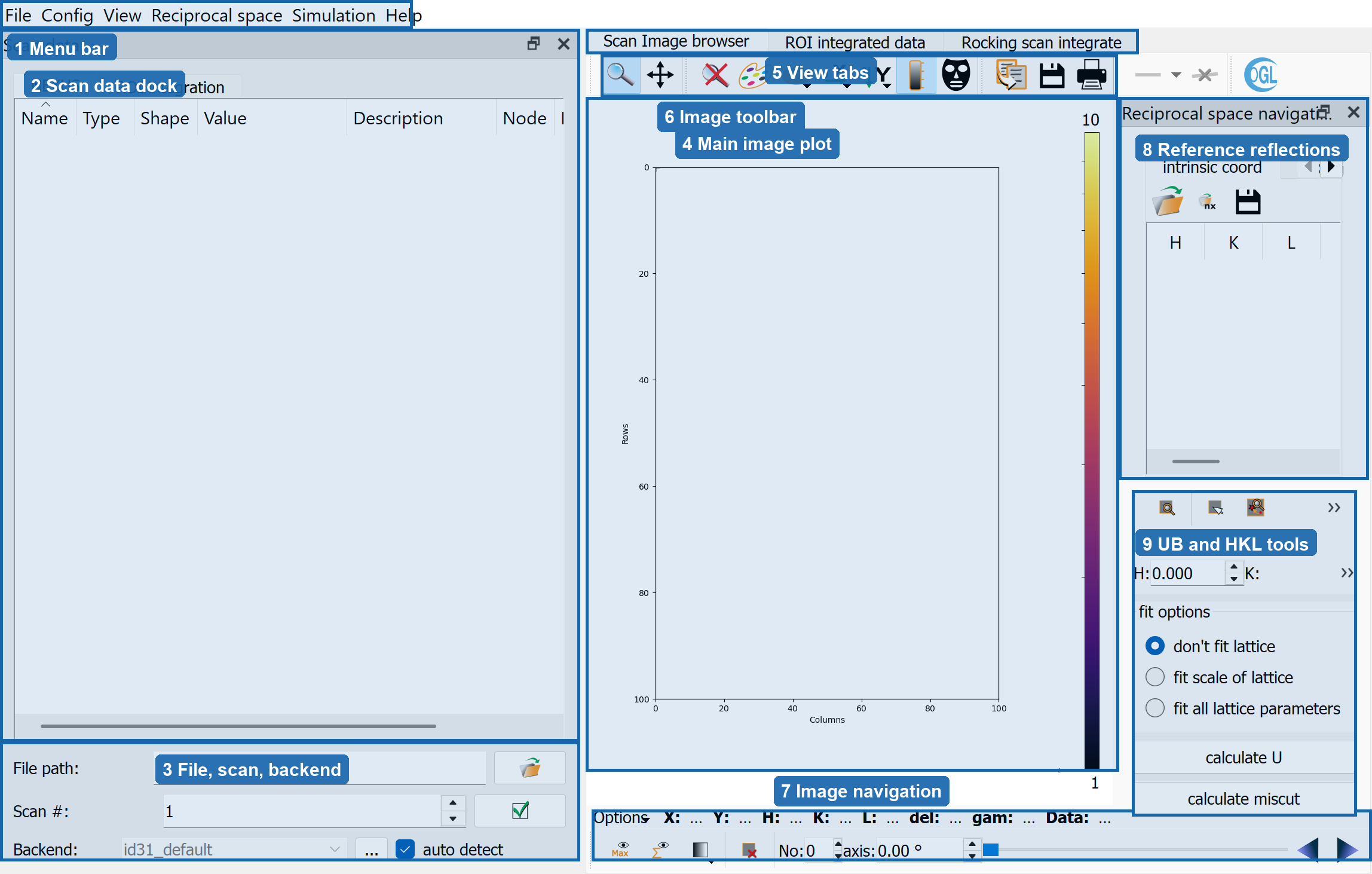
2. Scan Data Dock
The Scan data dock is the main scan-selection panel. Its NEXUS tab
shows the loaded file tree through a Nexus/HDF5 browser. Double clicking a
compatible scan node opens that scan.
The same dock also contains the ROI integration tab. That tab is not shown
in the screenshot, but it is where ROI size, background ROI size, integration
mode, correction options, and the ROI integrate scan action are configured.
The available integration modes are:
hklscan: stationary integration alongH(s) = H_1 * s + H_0in r.l.u.fixed: integration at a fixed detector-pixel ROI.rocking hklscan: rocking-scan integration along an HKL line.rocking Bragg: rocking-scan integration at calculated Bragg reflections.
3. File, Scan, And Backend Controls
These controls select the data source and loader:
File pathPath to a Nexus, SPEC, or log file.
Scan #Scan number to load from the selected file. The button beside it opens the scan.
BackendBeamline/file-format loader used to interpret the selected scan. With
auto detectenabled, orGUI tries to infer the backend from the selected Nexus metadata. The...button loads a custom backend file. See Beamline Backends for backend selection and custom backend files.
4. Main Image Plot
The Scan Image browser tab contains the central detector image plot. This
area displays the current detector frame and overlays such as reference
reflection markers, calculated Bragg/CTR reflections, machine-parameter
markers, masks, and ROIs.
The plot coordinates are detector pixels. When a scan and calibration are available, orGUI also uses the image position and scan axis value to connect pixels to reciprocal-space coordinates.
5. View Tabs
The central workspace has three tabs:
Scan Image browserInspect raw detector images and overlays.
ROI integrated dataPlot integrated intensity curves and inspect integrated output data.
Rocking scan integrateWork with the rocking-peak integration helper.
6. Image Toolbar
The toolbar above the image plot contains common plot and image tools from the
plot widget, including zoom/pan-style navigation, colormap and display controls,
mask tools, and save/print-style actions. These tools operate on the image plot
currently shown in the Scan Image browser tab.
8. Reference Reflections
The Reciprocal space navigation dock stores reference reflections used for
orientation-matrix calculation and navigation. The visible intrinsic coord
table stores H, K, L, detector x/y position, and image
number. The neighboring SIXC angles tab shows calculated diffractometer
angles for the selected reflections.
Useful actions in this area include:
jump to the image associated with a selected reflection
set the current image for a selected reflection
perform a 2D peak search around a reflection
add a suggested Bragg reflection when calculated candidates are available
Double clicking in the image plot can add or move reflection markers, depending on the active interaction mode.
9. UB And HKL Tools
The lower part of the Reciprocal space navigation dock contains the
orientation and HKL tools. The visible HKL spin boxes and search action calculate
where a requested reflection should appear. The fit options control how much
the lattice is adjusted when calculating the orientation matrix:
don't fit latticeKeep lattice parameters fixed and fit orientation from the selected reflections.
fit scale of latticeFit a lattice scale factor when enough reflections are available.
fit all lattice parametersFit all lattice parameters when enough reflections are available.
calculate UCalculate the orientation matrix from the current reference reflections.
calculate miscutEstimate the miscut from the deviation between the current orientation matrix and the ideal orientation.
Typical First Workflow
Load a configuration from
Config -> Load configor start orGUI with a config file.Select the scan file, scan number, and backend in the
Scan datadock.Open a scan and inspect the detector image in
Scan Image browser.Add or edit reference reflections in
Reciprocal space navigation.Click
calculate Uand verify that calculated reflections match observed image features.Switch to
ROI integrationin theScan datadock, set ROI parameters, and integrate the desired scan.